Use Wi-Fi Direct concepts to transfer files between Android and Windows, with practical notes about compatibility, speed, and security.
Read More »Wiu2011Fi Direct File Transfer Basics
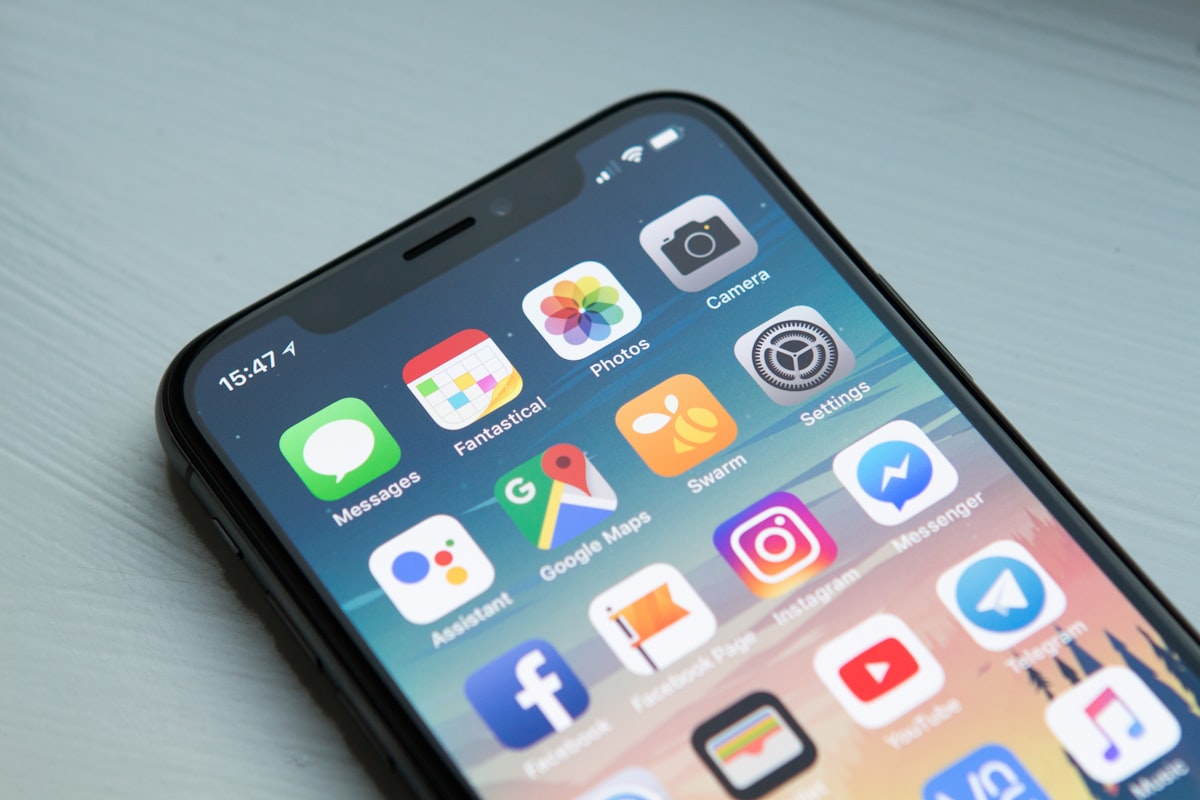
Use Wi-Fi Direct concepts to transfer files between Android and Windows, with practical notes about compatibility, speed, and security.
Read More »
Compare Send Anywhere with browser-based Snapdrop-style transfers for privacy, speed, setup, file limits, and local network use.
Read More »
Make selected Google Drive files available offline on Android, manage local copies, and avoid synchronization surprises while traveling.
Read More »
Learn how OneDrive Files On-Demand saves disk space, what each sync icon means, and how to keep important files available offline.
Read More »
Configure Storage Sense in Windows 11 to remove temporary files automatically while protecting Downloads and files you still need.
Read More »
Connect to Android with wireless ADB and pull files to Windows safely, including pairing, authorization, commands, and common fixes.
Read More »
Enable DNS over HTTPS in Windows 11 to encrypt DNS requests and learn how to verify that your selected resolver supports secure DNS.
Read More »
Use Windows Sandbox to test unfamiliar installers and files in an isolated desktop without changing your main Windows installation.
Read More »
Configure Android Digital Wellbeing, app timers, Focus mode, and bedtime tools without blocking essential communication or navigation apps.
Read More »
Export saved browser passwords safely, protect the temporary CSV file, import it into a password manager, and remove exposed copies.
Read More »
Reduce distractions in the Windows 11 Widgets board by hiding cards, changing interests, disabling notifications, or turning it off.
Read More »
Schedule a Windows shutdown or restart with built-in commands and Task Scheduler, then cancel or troubleshoot the scheduled action.
Read More »