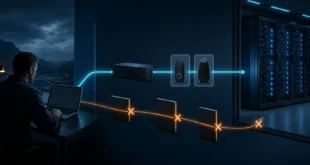
A PowerShell command entered in Windows Admin Center runs in a remote management session, not on the signed-in user’s desktop. Creating a WPF or Windows Forms dialog directly in that session normally makes it invisible to the user.
The reliable pattern is to place a small popup script on the managed PC, start it through Task Scheduler with the active user’s interactive token, and write the answer to a result file that the WAC session can read.
Microsoft’s schtasks documentation explains the boundary: programs running as SYSTEM are not interactive and users cannot see them. The task must run as a user who is already logged on. The Task Scheduler API describes this as an interactive-token logon.
Before Running the Script
Use this only on managed Windows computers where displaying an administrative message is authorised. Run the WAC PowerShell tool with local administrative rights. The example targets the interactive console user reported by Win32_ComputerSystem; it deliberately stops if no such user is signed in.
The response file is operational feedback, not a secure signature. A user with write access to the temporary directory could alter it. Do not use this pattern for legal consent, privileged approval, identity verification, or high-assurance change authorisation.
Complete WAC PowerShell Script
The script below displays a topmost Yes/No dialog, prevents closing it with the window close button until an answer is selected, waits up to 30 minutes, returns the response to WAC, and removes its task and temporary files.
$ErrorActionPreference = 'Stop'

$MessageText = 'Please leave this computer powered on for scanner maintenance.'
$WindowTitle = 'Maintenance confirmation'
$TimeoutSec  = 1800
$TaskName    = "WAC-UserPrompt-$([guid]::NewGuid().ToString('N'))"
$WorkDir     = Join-Path $env:ProgramData $TaskName
$PopupFile   = Join-Path $WorkDir 'Show-Prompt.ps1'
$ResultFile  = Join-Path $WorkDir 'result.json'

$ActiveUser = (Get-CimInstance Win32_ComputerSystem).UserName
if ([string]::IsNullOrWhiteSpace($ActiveUser)) {
    throw 'No interactive console user is currently signed in.'
}

New-Item -Path $WorkDir -ItemType Directory -Force | Out-Null

# Permit the selected interactive user to read the script and write the result.
& icacls.exe $WorkDir /inheritance:r /grant:r `
    '*S-1-5-18:(OI)(CI)F' `
    '*S-1-5-32-544:(OI)(CI)F' `
    "$($ActiveUser):(OI)(CI)M" | Out-Null

$PopupSource = @'
param(
    [Parameter(Mandatory)] [string] $MessageText,
    [Parameter(Mandatory)] [string] $WindowTitle,
    [Parameter(Mandatory)] [string] $ResultFile
)

Add-Type -AssemblyName PresentationFramework

$Window = New-Object System.Windows.Window
$Window.Title = $WindowTitle
$Window.Width = 560
$Window.Height = 230
$Window.WindowStartupLocation = 'CenterScreen'
$Window.ResizeMode = 'NoResize'
$Window.Topmost = $true
$Window.ShowInTaskbar = $true

$Grid = New-Object System.Windows.Controls.Grid
$Grid.Margin = 24
$Grid.RowDefinitions.Add((New-Object System.Windows.Controls.RowDefinition))
$ButtonRow = New-Object System.Windows.Controls.RowDefinition
$ButtonRow.Height = 'Auto'
$Grid.RowDefinitions.Add($ButtonRow)

$Text = New-Object System.Windows.Controls.TextBlock
$Text.Text = $MessageText
$Text.FontSize = 18
$Text.TextWrapping = 'Wrap'
$Text.VerticalAlignment = 'Center'
$Grid.Children.Add($Text) | Out-Null

$Panel = New-Object System.Windows.Controls.StackPanel
$Panel.Orientation = 'Horizontal'
$Panel.HorizontalAlignment = 'Center'
$Panel.Margin = '0,20,0,0'
[System.Windows.Controls.Grid]::SetRow($Panel, 1)

$Yes = New-Object System.Windows.Controls.Button
$Yes.Content = 'Yes'
$Yes.Width = 110
$Yes.Height = 36
$Yes.Margin = '8,0'

$No = New-Object System.Windows.Controls.Button
$No.Content = 'No'
$No.Width = 110
$No.Height = 36
$No.Margin = '8,0'

$script:Answered = $false
$script:Response = $null

$Yes.Add_Click({
    $script:Answered = $true
    $script:Response = 'Yes'
    $Window.Close()
})

$No.Add_Click({
    $script:Answered = $true
    $script:Response = 'No'
    $Window.Close()
})

$Window.Add_Closing({
    param($Sender, $EventArgs)
    if (-not $script:Answered) {
        $EventArgs.Cancel = $true
    }
})

$Panel.Children.Add($Yes) | Out-Null
$Panel.Children.Add($No) | Out-Null
$Grid.Children.Add($Panel) | Out-Null
$Window.Content = $Grid
$Window.Add_ContentRendered({ $Window.Activate(); $Window.Topmost = $true })

$null = $Window.ShowDialog()

[pscustomobject]@{
    UserName = [System.Security.Principal.WindowsIdentity]::GetCurrent().Name
    Response = $script:Response
    TimeUtc  = [DateTime]::UtcNow.ToString('o')
} | ConvertTo-Json | Set-Content -LiteralPath $ResultFile -Encoding UTF8
'@

Set-Content -LiteralPath $PopupFile -Value $PopupSource -Encoding UTF8

$PowerShellExe = Join-Path $env:SystemRoot 'System32\WindowsPowerShell\v1.0\powershell.exe'
$Arguments = '-NoProfile -ExecutionPolicy Bypass -File "{0}" -MessageText "{1}" -WindowTitle "{2}" -ResultFile "{3}"' -f `
    $PopupFile,
    $MessageText.Replace('"','\"'),
    $WindowTitle.Replace('"','\"'),
    $ResultFile

$Action = New-ScheduledTaskAction -Execute $PowerShellExe -Argument $Arguments
$Trigger = New-ScheduledTaskTrigger -Once -At (Get-Date).AddMinutes(5)
$Principal = New-ScheduledTaskPrincipal -UserId $ActiveUser `
    -LogonType Interactive -RunLevel Limited
$Settings = New-ScheduledTaskSettingsSet -ExecutionTimeLimit (New-TimeSpan -Minutes 35)

try {
    Register-ScheduledTask -TaskName $TaskName -Action $Action -Trigger $Trigger `
        -Principal $Principal -Settings $Settings | Out-Null

    Start-ScheduledTask -TaskName $TaskName

    $Deadline = (Get-Date).AddSeconds($TimeoutSec)
    while ((Get-Date) -lt $Deadline -and -not (Test-Path -LiteralPath $ResultFile)) {
        Start-Sleep -Seconds 2
    }

    if (-not (Test-Path -LiteralPath $ResultFile)) {
        throw "No response was received within $TimeoutSec seconds."
    }

    Get-Content -LiteralPath $ResultFile -Raw | ConvertFrom-Json |
        Select-Object UserName, Response, TimeUtc
}
finally {
    Stop-ScheduledTask -TaskName $TaskName -ErrorAction SilentlyContinue
    Unregister-ScheduledTask -TaskName $TaskName -Confirm:$false -ErrorAction SilentlyContinue
    Remove-Item -LiteralPath $WorkDir -Recurse -Force -ErrorAction SilentlyContinue
}
Why This Works
The WAC session performs only the administrative orchestration. The scheduled task’s principal is the signed-in user and its logon type is InteractiveToken, so Windows starts the WPF process in an existing interactive session. The task runs with limited user rights because the dialog does not need elevation.
The trigger is required when registering the task, but Start-ScheduledTask launches it immediately. The future trigger time prevents the task from also firing during the short execution window. Cleanup in finally runs whether the user answers, the wait times out, or result parsing fails.
Common Failure Modes
If no dialog appears, check these in order:
(Get-CimInstance Win32_ComputerSystem).UserName
Get-ScheduledTask -TaskName 'WAC-UserPrompt-*' -ErrorAction SilentlyContinue
Get-WinEvent -LogName 'Microsoft-Windows-TaskScheduler/Operational' -MaxEvents 30
- No active user: there is no desktop in which to display the dialog.
- Task runs as SYSTEM: session isolation makes the UI invisible.
- Wrong user selected: multi-user or Remote Desktop hosts need explicit session selection rather than the console-user shortcut.
- Result never arrives: inspect the task’s last result and the temporary directory permissions.
- The WAC command appears stuck: it is intentionally waiting for an answer; reduce
$TimeoutSecfor testing.
For fleets, replace ad-hoc files with a signed script, central logging, defined expiry, and an approved endpoint-management notification mechanism. For one controlled workstation, the interactive scheduled-task bridge solves the session boundary while still returning a concise Yes/No result to the administrator.