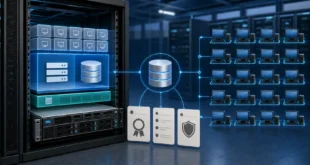
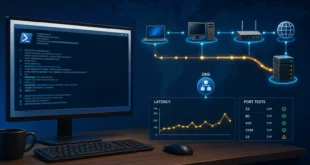
A remote-work computer moves between home, office, hotel, and public networks while holding browser sessions, documents, credentials, and access to internal services. Hardening Windows 11 should reduce the impact of a lost device, malicious file, stolen password, unsafe network, or failed update without making the computer impossible to use.
Start With Supported Hardware and Updates
Use hardware that supports Secure Boot, TPM 2.0, and current Windows 11 security features. Install Windows and firmware updates through managed channels. Remove end-of-life applications and browser extensions, not just outdated Windows components. Reboot within a defined window so security updates actually take effect.
Keep a short inventory of critical applications, device owner, recovery contacts, encryption status, and last backup test. Hardening without an inventory leaves abandoned software and unknown exceptions.
Protect Accounts and Sign-In
- Use a named standard account for normal work.
- Keep administrative elevation separate and limited.
- Use Windows Hello with a PIN or biometric backed by the device TPM.
- Require MFA for email, cloud storage, VPN, and administrative portals.
- Remove stale local and organizational accounts.
- Use a password manager rather than reusing passwords.
A Windows Hello PIN is bound to the device and is not simply a shorter online-account password. Protect recovery methods because attackers often target password reset and session recovery instead of the primary sign-in.
Encrypt the Device and Protect Recovery Keys
Enable BitLocker or device encryption on system and sensitive data drives. Store the recovery key in an approved location separate from the laptop and verify that authorized support staff can retrieve it. Do not keep the only copy in a text file on the encrypted device.
Encryption protects data when a powered-off device is lost or a drive is removed. It does not protect files from malware running inside an unlocked session, so combine it with endpoint protection and account controls.
Configure Firewall and Network Profiles
Keep Microsoft Defender Firewall enabled for Domain, Private, and Public profiles. Treat hotel, airport, and shared Wi-Fi as Public. Disable inbound sharing and discovery unless a documented workflow needs them. Review third-party firewall or VPN software to ensure it does not silently replace the policy.
Use a trusted VPN for access to private resources and untrusted networks. Do not expose RDP directly; follow our secure RDP access design. Confirm DNS behavior with the VPN DNS leak checklist.
Use Built-In Threat Protection
Keep Microsoft Defender Antivirus, cloud-delivered protection, and tamper protection active unless an approved enterprise product replaces them. Review Windows Security for unresolved actions. Consider Smart App Control or application-control policy for managed fleets, but test business applications before enforcing a restrictive mode.
Enable potentially unwanted app blocking and browser reputation protection. Treat exclusions as temporary, narrow exceptions with an owner and review date. Broad exclusions for download, user-profile, or project directories create durable blind spots.
Reduce Application and Browser Risk
Uninstall software that is no longer needed. Restrict Office macros from internet-originated files and use protected viewing modes. Keep browsers updated, remove unapproved extensions, and separate personal and work profiles where policy requires it.
Use least privilege for synchronization clients and developer tools. A remote-work PC may hold SSH keys, API tokens, or saved browser sessions that are more valuable than local documents. Store secrets in approved credential managers and rotate them after suspected compromise.
Control Data and Removable Devices
Define where work data may be stored and synchronized. Encrypt approved removable drives and block unknown media in higher-risk environments. Disable automatic execution. For RDP, restrict clipboard, drive, printer, and device redirection if users do not need them.
Backups should include important local data and be recoverable without the laptop. Versioned cloud storage helps with accidental changes but is not always a complete backup. Test restoration of a representative file and document the result.
Enable Useful Logging and Recovery
Ensure time synchronization works, because reliable timestamps are essential during incident response. Retain Security logs at a size appropriate to the device and forward important events for managed systems. Our failed-login guide shows how to interpret sign-in evidence.
Create a recovery plan that covers a forgotten PIN, failed update, damaged disk, lost device, and account compromise. Test that BitLocker recovery, backup restoration, and remote account revocation work before an emergency.
Validate the Baseline
- Run Windows Update and confirm no restart is pending.
- Review Windows Security and encryption status.
- Sign in as the standard user and verify that administration requires elevation.
- Confirm Public profile firewall behavior on a test network.
- Test VPN access and verify that private services are not public.
- Restore a test file from backup.
- Confirm that the device and cloud sessions can be revoked.
Frequently Asked Questions
Should remote workers use administrator accounts?
Not for normal work. Use standard accounts and separate, controlled elevation. This reduces the impact of malicious files and accidental system changes.
Is BitLocker enough if a laptop is stolen?
It strongly protects data at rest when configured correctly, but you must also revoke cloud sessions, VPN credentials, tokens, and device access because the computer may have been stolen while unlocked.
Do I need a third-party antivirus?
Not automatically. The important requirements are current, centrally visible protection, tamper resistance, sensible exclusions, and an incident process. Evaluate products against those needs.
Maintenance Schedule
Review updates and alerts continuously, accounts and extensions monthly, recovery keys and backup tests quarterly, and the full baseline after major software or role changes. Every exception should have a reason, owner, and expiry. A hardened system is a maintained state, not a one-time checklist.